I mentioned this in passing on a forum today, and wanted to elaborate a little.
If you choose to edit your images in 16-bit mode, then of course you need to convert to 8-bit for printing at the end.
Your final steps for printing probably include:
> Flatten layers
> Crop/resize
> Convert to 8-bit
> Sharpen
> Save
Now, the order of some of those steps is flexible. You could resize before flattening, for example. Some people say it's important to sharpen while still in 16-bit, and they're probably right (I haven't checked).
Friday, February 26, 2010
Wednesday, February 24, 2010
Skintones - why so hasty?
I'd like to take this opportunity to ask your advice about a few things, if I may ...
My son is seven months old, and crawling a little. Do you think he's ready for me to take him to the park and teach him to fly a kite?
My daughter is two and a half, and learning the alphabet. She knows most letters by sight, and knows some of their sounds. Is this an appropriate time for us to introduce her to the works of Shakespeare?
Our bathroom is quite old and daggy (circa 1970s) and we hope to renovate it in the next few years. Would now be a good time to install some gold-plated fixtures?
The answer to all three questions is clearly "No".
Ok, what about this question ...
I have a photo that's a little bit underexposed, and I haven't fixed the white balance. Should I go ahead and try to fix the skintones right away?
Too many people, it seems, would answer "Yes, go ahead" to that question.
So often I see people agonising over skintones, when it is crystal clear that the photos have overall exposure and white balance issues.
Please, pleeeeeaase slow down and evaluate your photo. Good white balance and good exposure will take you most of the way to good skintones. Look after the big things, and the little things will look after themselves.
If you dive right in there and start trying to fix skintones, without fixing the whole photo first, you'll drive yourself insane.
My son is seven months old, and crawling a little. Do you think he's ready for me to take him to the park and teach him to fly a kite?
My daughter is two and a half, and learning the alphabet. She knows most letters by sight, and knows some of their sounds. Is this an appropriate time for us to introduce her to the works of Shakespeare?
Our bathroom is quite old and daggy (circa 1970s) and we hope to renovate it in the next few years. Would now be a good time to install some gold-plated fixtures?
The answer to all three questions is clearly "No".
Ok, what about this question ...
I have a photo that's a little bit underexposed, and I haven't fixed the white balance. Should I go ahead and try to fix the skintones right away?
Too many people, it seems, would answer "Yes, go ahead" to that question.
So often I see people agonising over skintones, when it is crystal clear that the photos have overall exposure and white balance issues.
Please, pleeeeeaase slow down and evaluate your photo. Good white balance and good exposure will take you most of the way to good skintones. Look after the big things, and the little things will look after themselves.
If you dive right in there and start trying to fix skintones, without fixing the whole photo first, you'll drive yourself insane.
Monday, February 22, 2010
What makes a great black-and-white photo?
Black-and-white imaging is tricky - if it's done well, it looks amazing; but if it's done poorly it looks awful.
So what's the key to a good one? Well, it's right there in the name - black and white.
The name of the craft is not "Shades-of-dark-grey-and-light-grey photography". It's "Black-and-white photography".
For a B-W photo to smack the viewer in the face, it needs to have plenty of blacks and whites. Any area of significant detail without a black and a white in it somewhere is flat, dull, and uninspiring. The photo needs plenty of contrast, not only globally, but in all the detail.
So what's the key to a good one? Well, it's right there in the name - black and white.
The name of the craft is not "Shades-of-dark-grey-and-light-grey photography". It's "Black-and-white photography".
For a B-W photo to smack the viewer in the face, it needs to have plenty of blacks and whites. Any area of significant detail without a black and a white in it somewhere is flat, dull, and uninspiring. The photo needs plenty of contrast, not only globally, but in all the detail.
Sunday, February 21, 2010
High Pass Sharpening tutorial
I've just posted a new tutorial on my site - Basics of High Pass Sharpening.
As the title suggests, this is an introductory guide to this popular sharpening method.
In the next week or so I intend to post an advanced tutorial, where I'll take a look at the power and flexibility available in this method.
As the title suggests, this is an introductory guide to this popular sharpening method.
In the next week or so I intend to post an advanced tutorial, where I'll take a look at the power and flexibility available in this method.
Saturday, February 20, 2010
Noise reduction in the workflow
I saw the question asked today: At what point in your workflow do you apply noise reduction?
If I'm dealing with a noisy raw file, I'll take care to adjust the noise reduction sliders in ACR while I'm making my other raw adjustments. In a lot of cases, the ACR NR is good enough to do the job, and I don't need to give it another thought.
In cases where the raw noise reduction isn't enough, or if I'm working with jpeg files, then I use the Community Edition of Noiseware for my noise needs. It's a standalone program, so it's not as streamlined as having a PS plug-in, but it's fine for my infrequent needs, and the price is right!
There are differing opinions about where noise reduction should occur in the workflow. Some people do it right at the beginning.
Personally, I often treat noise reduction the same as sharpening. That is, I usually don't apply it to my master file at all. My master file (PSD) has all my adjustment layers, etc, but I don't crop or resize it, nor do I sharpen it, nor do I apply noise reduction.
Then, when it comes time to print, I flatten the layers, then crop/resize to the desired print size. If, at that size, I'm concerned about noise, I'll apply noise reduction. Then I'll sharpen appropriately, and save as a jpeg ready for print.
I don't know whether that's the "right" thing to do, but it suits me ok.
If I'm dealing with a noisy raw file, I'll take care to adjust the noise reduction sliders in ACR while I'm making my other raw adjustments. In a lot of cases, the ACR NR is good enough to do the job, and I don't need to give it another thought.
In cases where the raw noise reduction isn't enough, or if I'm working with jpeg files, then I use the Community Edition of Noiseware for my noise needs. It's a standalone program, so it's not as streamlined as having a PS plug-in, but it's fine for my infrequent needs, and the price is right!
There are differing opinions about where noise reduction should occur in the workflow. Some people do it right at the beginning.
Personally, I often treat noise reduction the same as sharpening. That is, I usually don't apply it to my master file at all. My master file (PSD) has all my adjustment layers, etc, but I don't crop or resize it, nor do I sharpen it, nor do I apply noise reduction.
Then, when it comes time to print, I flatten the layers, then crop/resize to the desired print size. If, at that size, I'm concerned about noise, I'll apply noise reduction. Then I'll sharpen appropriately, and save as a jpeg ready for print.
I don't know whether that's the "right" thing to do, but it suits me ok.
Thursday, February 18, 2010
Off topic, but very excited
Near the end of last year I had knee surgery (ACL recon, for those keeping score). The surgery involves taking a long piece of my hamstring to graft it onto my knee ligament. Here was my knee immediately after:

At age 32, I figured my gymnastics days might be over. Ah well, I've had a good run. I've spent my whole life tumbling and swinging, and it can't last forever, right?
But tonight I've had a little win, which has inspired me to try a little harder and get back my old skills:

Ok, so they're not perfect, but they're better than I thought I'd ever see again. I'm just rapt. Maybe 30 really is the new 20?
(By the way, that photo is SOOC - no Photoshop trickery involved. Just in case you're suspicious!)
Let's see how I feel in the morning. If you don't see me online for a few days, it's probably because I can't get out of bed!!!

At age 32, I figured my gymnastics days might be over. Ah well, I've had a good run. I've spent my whole life tumbling and swinging, and it can't last forever, right?
But tonight I've had a little win, which has inspired me to try a little harder and get back my old skills:

Ok, so they're not perfect, but they're better than I thought I'd ever see again. I'm just rapt. Maybe 30 really is the new 20?
(By the way, that photo is SOOC - no Photoshop trickery involved. Just in case you're suspicious!)
Let's see how I feel in the morning. If you don't see me online for a few days, it's probably because I can't get out of bed!!!
Wednesday, February 17, 2010
Multiple light sources ... AAAAAAAAGGHH!!!!
What's your worst enemy in post-processing? Noise? Nope. Underexposure? Nah.
It's multiple light sources! I hate them so much!!!!!
Well, let me clarify. You can take a photo with as many light sources as you like, as long as they're exactly the same temperature. But if you have a photo with two or more sources of different coloured light, it's a nightmare to edit.
Usually the problem arises in photos which are taken indoors, with an overhead light and a window providing the illumination. The bulb light is quite yellow, and the natural light is bluer by comparison. If both the warm light and the cool light are striking the subject's face, it's bloody awful to try to balance.
I'd rather edit an underexposed, noisy, yellow photo over a perfectly-exposed, clean photo with two light temperatures. One white balance problem is easy to fix; more than one in the same photo is very difficult.
So, make things easy for yourself. You can shoot in natural light, or fluorescent light, or tungsten light, or whatever ... just make sure there's only one light temperature. You'll save yourself plenty of headaches back at the computer.
It's multiple light sources! I hate them so much!!!!!
Well, let me clarify. You can take a photo with as many light sources as you like, as long as they're exactly the same temperature. But if you have a photo with two or more sources of different coloured light, it's a nightmare to edit.
Usually the problem arises in photos which are taken indoors, with an overhead light and a window providing the illumination. The bulb light is quite yellow, and the natural light is bluer by comparison. If both the warm light and the cool light are striking the subject's face, it's bloody awful to try to balance.
I'd rather edit an underexposed, noisy, yellow photo over a perfectly-exposed, clean photo with two light temperatures. One white balance problem is easy to fix; more than one in the same photo is very difficult.
So, make things easy for yourself. You can shoot in natural light, or fluorescent light, or tungsten light, or whatever ... just make sure there's only one light temperature. You'll save yourself plenty of headaches back at the computer.
Tuesday, February 16, 2010
For the beginners: choosing your software
Once you've started to get serious about your photography, you need some decent software. The options seem a little confusing and daunting at first.
Basically, there are two streams of software, which I will loosely refer to as "file managers" and "pixel editors".
King of the file managers is Adobe Lightroom. There's also Apple Aperture, which is very powerful, and Canon and Nikon have their own programs too. These programs are very powerful "image library" programs, for cataloging, ranking, sorting and batch-processing your images. They are also very powerful global image processing programs, especially for Raw shooters. They allow you to quickly select one or many of your photos, and fix white balance, exposure, etc..
King of the pixel editors is Adobe Photoshop, of course. There's also Photoshop Elements, which is a cut-down version, but still extremely powerful in its own right; and Corel Paint Shop Pro. The pixel editors are for getting "up close and personal" with your images, one at a time. They allow you to make global adjustments, followed by selective adjustments, then actions, styles, cloning, layers, etc. The sky is the limit.
(More explanation of "global" and "selective" processing here)
So, which to choose? Well, if you shoot a heck of a lot of photos, and you don't need to do anything particularly fancy with any of them, then a file manager/raw processor such as Lightroom is for you. If you don't take many photos, but want to do wonderful things to them, then a pixel editor such as Photoshop or Elements is for you.
And obviously, if you take a lot of photos and want to control them powerfully, then you need both. In that case, I'd usually recommend getting the pixel editing program first, and investing in the file management program when you have enough money in the future. The pixel editing program can do all of the global and selective adjustments, giving you lots of control over your pics.
Don't forget that you can download fully-functional 30-day trial versions of any of the programs from Adobe's site. It's plenty of time to play and decide for yourself.
Basically, there are two streams of software, which I will loosely refer to as "file managers" and "pixel editors".
King of the file managers is Adobe Lightroom. There's also Apple Aperture, which is very powerful, and Canon and Nikon have their own programs too. These programs are very powerful "image library" programs, for cataloging, ranking, sorting and batch-processing your images. They are also very powerful global image processing programs, especially for Raw shooters. They allow you to quickly select one or many of your photos, and fix white balance, exposure, etc..
King of the pixel editors is Adobe Photoshop, of course. There's also Photoshop Elements, which is a cut-down version, but still extremely powerful in its own right; and Corel Paint Shop Pro. The pixel editors are for getting "up close and personal" with your images, one at a time. They allow you to make global adjustments, followed by selective adjustments, then actions, styles, cloning, layers, etc. The sky is the limit.
(More explanation of "global" and "selective" processing here)
So, which to choose? Well, if you shoot a heck of a lot of photos, and you don't need to do anything particularly fancy with any of them, then a file manager/raw processor such as Lightroom is for you. If you don't take many photos, but want to do wonderful things to them, then a pixel editor such as Photoshop or Elements is for you.
And obviously, if you take a lot of photos and want to control them powerfully, then you need both. In that case, I'd usually recommend getting the pixel editing program first, and investing in the file management program when you have enough money in the future. The pixel editing program can do all of the global and selective adjustments, giving you lots of control over your pics.
Don't forget that you can download fully-functional 30-day trial versions of any of the programs from Adobe's site. It's plenty of time to play and decide for yourself.
Monday, February 15, 2010
Itty bitty tips for PS on PC
PC Photoshoppers, did you know ...
1. Simply double-clicking on the grey background of the Photoshop workspace will bring up the File > Open dialog? Quicker than reaching for the menu, or even Ctrl O.
2. Ctrl-Tab will toggle through your open images? Actually, this is true for other applications as well ... while Alt-Tab toggles between applications, Ctrl-Tab toggles between documents within an application.
These two shortcuts might not seem like much, but if they can save you a few seconds every few minutes, it all adds up to a quicker workflow.
When I was a young bloke, the first time I worked at a newspaper, a wise old tradesman gave me an excellent tip. He said (paraphrasing): "Shortcuts will improve your work, but don't try to learn them all at once. Pick one or two each week, and build them into your workflow. For the first few days they'll feel slow and unintuitive, but by the end of the week they'll be as natural as breathing."
He was dead right. Little by little I've trained myself in heaps of keyboard shortcuts in all of the Adobe programs, and I do them instinctively, without even really knowing what my fingers are doing.
1. Simply double-clicking on the grey background of the Photoshop workspace will bring up the File > Open dialog? Quicker than reaching for the menu, or even Ctrl O.
2. Ctrl-Tab will toggle through your open images? Actually, this is true for other applications as well ... while Alt-Tab toggles between applications, Ctrl-Tab toggles between documents within an application.
These two shortcuts might not seem like much, but if they can save you a few seconds every few minutes, it all adds up to a quicker workflow.
When I was a young bloke, the first time I worked at a newspaper, a wise old tradesman gave me an excellent tip. He said (paraphrasing): "Shortcuts will improve your work, but don't try to learn them all at once. Pick one or two each week, and build them into your workflow. For the first few days they'll feel slow and unintuitive, but by the end of the week they'll be as natural as breathing."
He was dead right. Little by little I've trained myself in heaps of keyboard shortcuts in all of the Adobe programs, and I do them instinctively, without even really knowing what my fingers are doing.
Saturday, February 13, 2010
Video tute: B/W conversion action
Here is my first attempt at a video tutorial ... I hope the quality is ok!
I've shared my black-and-white conversion action on my site here. It's very simple, and fairly self-explanatory.
I've recorded a brief video to demonstrate it. I hope you find this useful.
I've shared my black-and-white conversion action on my site here. It's very simple, and fairly self-explanatory.
I've recorded a brief video to demonstrate it. I hope you find this useful.
A win for the Epson
I love my Epson V700 scanner. Sometimes I wish it was bigger than A4, but apart from that, it does me proud.
Case in point ...
Last week I had to scan an 8x12" print (a film print, not digital), and reproduce it at 24x36". I've never had a print done that big before, either from scanner or camera, so I was a little nervous.
It turned out brilliantly! It didn't lose an ounce of sharpness, and the detail was perfect.
In fact, the guy at the lab who printed it was blown away when I told him it was a scan. He assumed it was a digital file from my wife's 5D Mark II!
So yeah, I love my Epson scanner.
Case in point ...
Last week I had to scan an 8x12" print (a film print, not digital), and reproduce it at 24x36". I've never had a print done that big before, either from scanner or camera, so I was a little nervous.
It turned out brilliantly! It didn't lose an ounce of sharpness, and the detail was perfect.
In fact, the guy at the lab who printed it was blown away when I told him it was a scan. He assumed it was a digital file from my wife's 5D Mark II!
So yeah, I love my Epson scanner.
Friday, February 12, 2010
Skin class in motion
This morning I had a test run of my new Skintone Class, with my favourite guinea pig, Angela.
It went well, I think. It took a little longer than I'd anticipated, but that's fine. We covered basic skintone adjustment, as well as cast correction strategies, and I was reasonably satisfied with the flow.
It's back to the factory now, for a bit of tweaking and polishing, and I should have it ready to launch very soon.
Stay tuned!
It went well, I think. It took a little longer than I'd anticipated, but that's fine. We covered basic skintone adjustment, as well as cast correction strategies, and I was reasonably satisfied with the flow.
It's back to the factory now, for a bit of tweaking and polishing, and I should have it ready to launch very soon.
Stay tuned!
Thursday, February 11, 2010
Of noise, sliders, and such
A while ago I was asked about the Luminance Noise slider in ACR - any "rules of thumb" for adjusting it ...
Basically, as with many things in PP, it's a delicate balancing act ... you want that slider high enough to soften the unwanted grain, but not so high that it adversely affects desirable detail.
Of course you should only ever adjust while viewing at 100% - in fact, that applies to all the sliders in that Detail tab.
It's a little tricky, of course, because while the bulk of the noise we want to remove is in the shadow areas, the detail we want to preserve tends to be in the highlight areas. This means we often need to scroll around the image quite a bit while evaluating our settings. If you want to be ultra-nerdy about it, you can develop your raw file twice - once with NR settings for highlights, and once for shadows - then blend in Photoshop with a luminosity mask. But even I don't do that very often, and I am Lord of the Nerds.
No discussion about noise reduction would be complete without stopping for an oft-neglected reality check: Noise doesn't matter as much as we think it does! We (well, I) get so bogged down in pixel-peeping, and worrying about stuff that honestly won't be visible in print. Very often noise isn't visible in print even to the critical eye of the photographer who printed it; do you think your misty-eyed customer is going to notice insignificant noise around the smiling features of their beloved? Of course not :)
Furthermore, we should discuss the relationship between sharpening and noise reduction.
If you carefully remove a lot of noise from your image, but then are ham-fisted with your sharpening, it is possible to re-introduce the problem. In fact, in ACR, it's possible to be reducing and exaggerating noise at exactly the same time (in the Detail tab) - not a great idea, obviously.
When sharpening in Photoshop (which is where most of your sharpening will be performed), you need to be very careful with the Threshold setting in Unsharp Mask (discussed further here.)
In very difficult cases, even more careful sharpening methods should be employed. I believe Smart Sharpen is good at protecting noise, but I admit it's something I've never used. I have utilised High Pass sharpening with surface blur to good effect, when trying to sharpen a noisy image.
Basically, as with many things in PP, it's a delicate balancing act ... you want that slider high enough to soften the unwanted grain, but not so high that it adversely affects desirable detail.
Of course you should only ever adjust while viewing at 100% - in fact, that applies to all the sliders in that Detail tab.
It's a little tricky, of course, because while the bulk of the noise we want to remove is in the shadow areas, the detail we want to preserve tends to be in the highlight areas. This means we often need to scroll around the image quite a bit while evaluating our settings. If you want to be ultra-nerdy about it, you can develop your raw file twice - once with NR settings for highlights, and once for shadows - then blend in Photoshop with a luminosity mask. But even I don't do that very often, and I am Lord of the Nerds.
No discussion about noise reduction would be complete without stopping for an oft-neglected reality check: Noise doesn't matter as much as we think it does! We (well, I) get so bogged down in pixel-peeping, and worrying about stuff that honestly won't be visible in print. Very often noise isn't visible in print even to the critical eye of the photographer who printed it; do you think your misty-eyed customer is going to notice insignificant noise around the smiling features of their beloved? Of course not :)
Furthermore, we should discuss the relationship between sharpening and noise reduction.
If you carefully remove a lot of noise from your image, but then are ham-fisted with your sharpening, it is possible to re-introduce the problem. In fact, in ACR, it's possible to be reducing and exaggerating noise at exactly the same time (in the Detail tab) - not a great idea, obviously.
When sharpening in Photoshop (which is where most of your sharpening will be performed), you need to be very careful with the Threshold setting in Unsharp Mask (discussed further here.)
In very difficult cases, even more careful sharpening methods should be employed. I believe Smart Sharpen is good at protecting noise, but I admit it's something I've never used. I have utilised High Pass sharpening with surface blur to good effect, when trying to sharpen a noisy image.
Sunday, February 7, 2010
Multiple images in one PSD
This post is following up a discussion I had, which was following up my Trash those Jpegs article. Unfortunately, this won't work too well in Elements, which doesn't have Layer Groups, as far as I'm aware. Please correct me if I'm wrong.
Sometimes you might have processed an image a few different ways - eg once in "clean" colour, once as black-and-white, and once as a Vintage colour.
Normally, you'd expect to have one file for each of those styles. This places additional burden on your hard drive space, of course.
But with a proper layer-based workflow, it should be entirely possible to use the one PSD to house all of those styles. I do it simply by grouping my adjustment layers together and naming them appropriately.
Let's take a look at an example ...
Here's an unprocessed image:
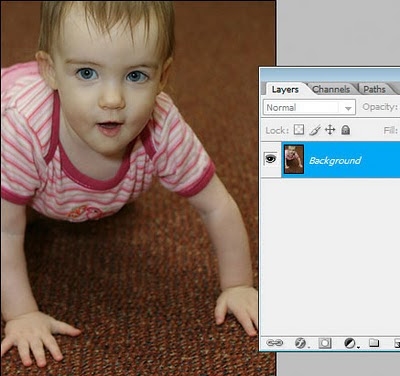
First thing I do is my normal "clean" processing, using a few simple adjustments:
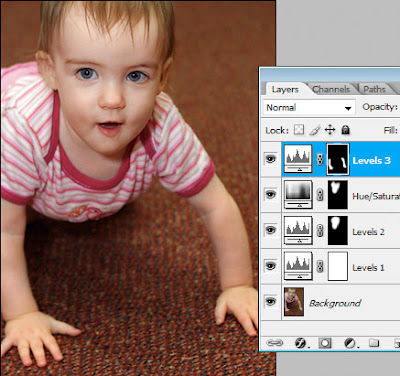
I'll group those adjustment layers together, and call the group "Enhancements".
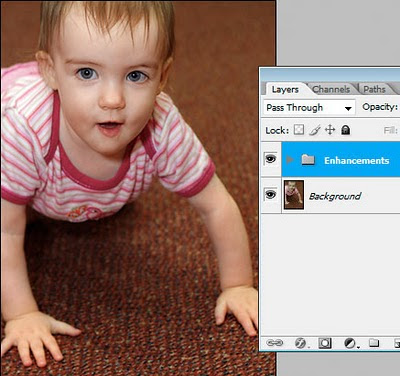
Hmmm ... what next? I think this might look good in black-and-white. I'll convert and make a few additional adjustments as required:
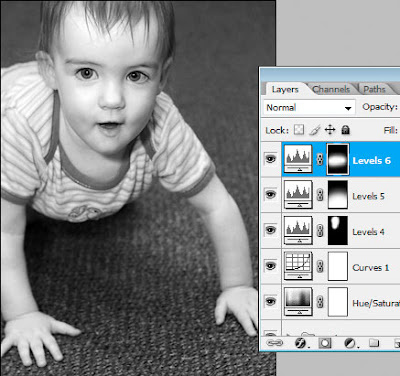
And again, I'll group those layers into their own group:
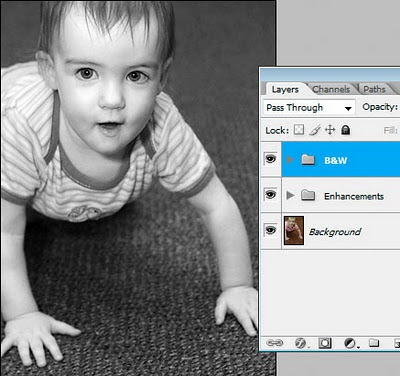
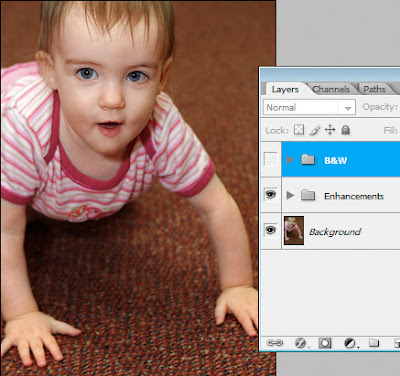
Now I'll simply hide that B&W layer. Now I'm back to my colour image. You can see how this is much easier than closing down the black-and-white one, and re-opening the colour one. It's all in one file!
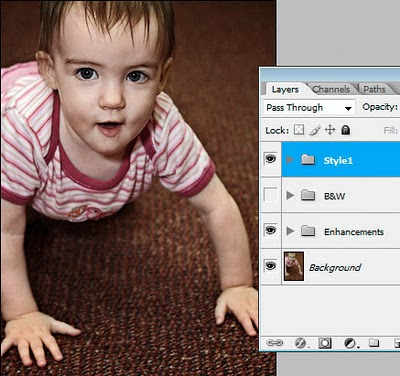
So, I'll keep going. I'll try a kinda "grungy" style ...
... then turn that off and try a "burned colour" sort of style:
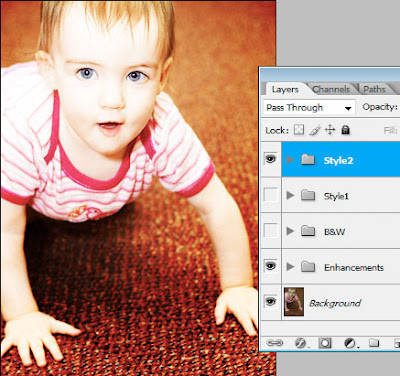
So I hope you can see the advantages to this. As you know, adjustment layers add almost nothing to file size - they are tiny. The only layers that add significant file size are pixel layers - ie my Background layer. If I had saved four different PSD versions of this image - one clean colour, one black-and-white, one grungy and one burned colour - then I would have been saving that big Background layer onto my hard drive four times. This way, I'm only saving it once.
More food for thought :)
Sometimes you might have processed an image a few different ways - eg once in "clean" colour, once as black-and-white, and once as a Vintage colour.
Normally, you'd expect to have one file for each of those styles. This places additional burden on your hard drive space, of course.
But with a proper layer-based workflow, it should be entirely possible to use the one PSD to house all of those styles. I do it simply by grouping my adjustment layers together and naming them appropriately.
Let's take a look at an example ...
Here's an unprocessed image:

First thing I do is my normal "clean" processing, using a few simple adjustments:

I'll group those adjustment layers together, and call the group "Enhancements".

Hmmm ... what next? I think this might look good in black-and-white. I'll convert and make a few additional adjustments as required:

And again, I'll group those layers into their own group:

Now I'll simply hide that B&W layer. Now I'm back to my colour image. You can see how this is much easier than closing down the black-and-white one, and re-opening the colour one. It's all in one file!

So, I'll keep going. I'll try a kinda "grungy" style ...

... then turn that off and try a "burned colour" sort of style:

So I hope you can see the advantages to this. As you know, adjustment layers add almost nothing to file size - they are tiny. The only layers that add significant file size are pixel layers - ie my Background layer. If I had saved four different PSD versions of this image - one clean colour, one black-and-white, one grungy and one burned colour - then I would have been saving that big Background layer onto my hard drive four times. This way, I'm only saving it once.
More food for thought :)
Friday, February 5, 2010
Editing skintones in Photoshop Elements
A lady wrote to me today to ask my advice about editing skintones in Photoshop Elements.
Her problem is shared by all Elements users - namely, the absence of CMYK numbers in the Info Palette. There are lots of tutorials on the web about editing skintones, but most of them advise doing it by the CMYK values. You know the kind of thing - "Cyan 1/3 of Magenta, Yellow slightly higher, etc".
How do you edit "by the numbers" if you don't have the numbers?
Well, the first answer is "by looking at the photo!" This might seem flippant, but seriously, it's possible to get so bogged down in "technical this" and "percentage that" that you forget to just look.
If your instinct says "that guy is too rosy" or "healthy people don't look as grey as that" or "she's too dark" or whatever, then that's what counts. Are people going to hang a little Info Palette beside your photo on their living room wall? Of course not. (Actually, that would be pretty funny!)
But, despite all that, I'm aware of the value of numbers. It's easy to start second-guessing yourself on skintones, and it's certainly easy to over-process and get lost in a mess of adjustments, and start to go insane. It's great to have numbers that you can check.
So, are Elements users doomed to insanity? No, of course not. You've got numbers - RGB ones.
RGB numbers aren't too hard to get used to. Broadly speaking, the rule is pretty simple: R>G>B. The Red value will always be higher than the Green value, which in turn will be higher than the Blue value.
Let's get a bit more specific. The Red value will usually roam between the mid-100s (in shadow areas) to mid-200s (in highlight areas).
The Green and Blue channels will usually roam from just under 100 to just over 200. What's important is the margin. The Green value will be an average of 20-30 points higher than the Blue value. If you keep that approximate margin, the colour of the skin will look good.
Please note that I'm talking about sRGB numbers here. If you consider yourself advanced enough to use Adobe RGB or ProPhoto RGB, then I would expect you to already be very proficient with skintones, and you don't need my help.
So don't despair that you can't afford a full version of Photoshop; and please don't think that you can't achieve great photos and great skintones in Elements. It's a powerful tool, and with a little practice, you'll be able to adapt CMYK-centric tutorials for your purposes.
Lastly, I want to say that people who truly understand how the R, G and B channels interact to make colour will become masters of their craft. CMYK numbers are not "real" values, and in the long run, will teach you very little about digital colour.
Please take a moment to read my Ramblings about skin, where you'll find some more useful information.
Her problem is shared by all Elements users - namely, the absence of CMYK numbers in the Info Palette. There are lots of tutorials on the web about editing skintones, but most of them advise doing it by the CMYK values. You know the kind of thing - "Cyan 1/3 of Magenta, Yellow slightly higher, etc".
How do you edit "by the numbers" if you don't have the numbers?
Well, the first answer is "by looking at the photo!" This might seem flippant, but seriously, it's possible to get so bogged down in "technical this" and "percentage that" that you forget to just look.
If your instinct says "that guy is too rosy" or "healthy people don't look as grey as that" or "she's too dark" or whatever, then that's what counts. Are people going to hang a little Info Palette beside your photo on their living room wall? Of course not. (Actually, that would be pretty funny!)
But, despite all that, I'm aware of the value of numbers. It's easy to start second-guessing yourself on skintones, and it's certainly easy to over-process and get lost in a mess of adjustments, and start to go insane. It's great to have numbers that you can check.
So, are Elements users doomed to insanity? No, of course not. You've got numbers - RGB ones.
RGB numbers aren't too hard to get used to. Broadly speaking, the rule is pretty simple: R>G>B. The Red value will always be higher than the Green value, which in turn will be higher than the Blue value.
Let's get a bit more specific. The Red value will usually roam between the mid-100s (in shadow areas) to mid-200s (in highlight areas).
The Green and Blue channels will usually roam from just under 100 to just over 200. What's important is the margin. The Green value will be an average of 20-30 points higher than the Blue value. If you keep that approximate margin, the colour of the skin will look good.
Please note that I'm talking about sRGB numbers here. If you consider yourself advanced enough to use Adobe RGB or ProPhoto RGB, then I would expect you to already be very proficient with skintones, and you don't need my help.
So don't despair that you can't afford a full version of Photoshop; and please don't think that you can't achieve great photos and great skintones in Elements. It's a powerful tool, and with a little practice, you'll be able to adapt CMYK-centric tutorials for your purposes.
Lastly, I want to say that people who truly understand how the R, G and B channels interact to make colour will become masters of their craft. CMYK numbers are not "real" values, and in the long run, will teach you very little about digital colour.
Please take a moment to read my Ramblings about skin, where you'll find some more useful information.
I've finished that restoration!
Thursday, February 4, 2010
Trash those Jpegs!
Some of you would have seen this when I posted on a forum today. But it's great blog fodder, so I can't pass up the opportunity to post it here as well!
There have been a few questions about workflow and file formats lately, so I'd like to share some thoughts here.
I'm going to make a suggestion about workflow. But please understand that there are as many workflows as photographers, and the one that's right for you is the one that works for you. Feel free to embrace, adapt or ignore as you please.
This is a Photoshop-based workflow. I don't use Lightroom, and I refuse to do so until they fix the colour space issues. Anyway ...
Part 1. The camera file
Whether you shoot Raw or Jpeg is immaterial. If you shoot Jpeg, you can open your image directly into Photoshop. If you shoot Raw, it goes through ACR first. Either way, it ends up in Photoshop.
Your camera file (Raw or Jpeg) is the precious original. You work from it, but you don't delete or change it.
Part 2. The PSD
Once the image is in Photoshop, the first thing you do is "Save As" and save it as a PSD file. A Tiff file is fine too (I use PSD because it's the easy default, and I'm lazy, and I see no reason to do otherwise).
PSD and Tiff are the Great Almighty File Formats. They can be high bit, have layers, have extra channels, etc. They're big (because there's no compression) but they're beautiful.
Part 3. The editing
Ok, so you go ahead and do your thing. Edit however you please (layers, actions, whatever) and save frequently. As you know, I do not recommend cropping, resizing or sharpening this master file in any way.
Part 4. The archiving
Once you've created your masterpiece, you back it up, archive it, and keep it forever. You might choose hard drives, or DVDs, or online storage ... it doesn't matter. The point is, you keep your magnificent work of photographic art safe for the rest of your days.
As well as that PSD, you can also archive your original camera file. Well, you don't have to, I guess, but it's probably not a bad idea.
Ok, so that's the whole workflow, from camera file to archive. A lovely straight road to follow.
But what about output, Damien? I don't edit my photos just to archive them. I want to print them, or show them on the web.
This is where we come to "Disposable Jpegs".
After you've created your PSD masterpiece, it needs to be saved as a Jpeg for any form of output. All photos for the web need to be Jpegs, and while there's a few labs who will print PSDs, most will expect Jpegs.
So, you flatten the layers in your PSD, crop/resize and sharpen appropriately for the intended output, then save as a Jpeg. Then you upload your Jpeg - to your server if it's a web image, or to the lab if it's a print. (Or maybe it's going on a CD for a client). Once you've uploaded it ...
... DELETE IT.
There is very little point to keeping these Jpeg output files. They're just annoying little files that clutter up your hard drive. If you need another Jpeg tomorrow, just make it again from the PSD.
I know for a fact that a lot of people are keeping Jpeg copies of their files all over the place. I encourage you to take a look at your workflow and ask yourself "do I really need to keep this Jpeg file?" You might well find that the answer is "Um ... actually, no."
Food for thought.
There have been a few questions about workflow and file formats lately, so I'd like to share some thoughts here.
I'm going to make a suggestion about workflow. But please understand that there are as many workflows as photographers, and the one that's right for you is the one that works for you. Feel free to embrace, adapt or ignore as you please.
This is a Photoshop-based workflow. I don't use Lightroom, and I refuse to do so until they fix the colour space issues. Anyway ...
Part 1. The camera file
Whether you shoot Raw or Jpeg is immaterial. If you shoot Jpeg, you can open your image directly into Photoshop. If you shoot Raw, it goes through ACR first. Either way, it ends up in Photoshop.
Your camera file (Raw or Jpeg) is the precious original. You work from it, but you don't delete or change it.
Part 2. The PSD
Once the image is in Photoshop, the first thing you do is "Save As" and save it as a PSD file. A Tiff file is fine too (I use PSD because it's the easy default, and I'm lazy, and I see no reason to do otherwise).
PSD and Tiff are the Great Almighty File Formats. They can be high bit, have layers, have extra channels, etc. They're big (because there's no compression) but they're beautiful.
Part 3. The editing
Ok, so you go ahead and do your thing. Edit however you please (layers, actions, whatever) and save frequently. As you know, I do not recommend cropping, resizing or sharpening this master file in any way.
Part 4. The archiving
Once you've created your masterpiece, you back it up, archive it, and keep it forever. You might choose hard drives, or DVDs, or online storage ... it doesn't matter. The point is, you keep your magnificent work of photographic art safe for the rest of your days.
As well as that PSD, you can also archive your original camera file. Well, you don't have to, I guess, but it's probably not a bad idea.
Ok, so that's the whole workflow, from camera file to archive. A lovely straight road to follow.
But what about output, Damien? I don't edit my photos just to archive them. I want to print them, or show them on the web.
This is where we come to "Disposable Jpegs".
After you've created your PSD masterpiece, it needs to be saved as a Jpeg for any form of output. All photos for the web need to be Jpegs, and while there's a few labs who will print PSDs, most will expect Jpegs.
So, you flatten the layers in your PSD, crop/resize and sharpen appropriately for the intended output, then save as a Jpeg. Then you upload your Jpeg - to your server if it's a web image, or to the lab if it's a print. (Or maybe it's going on a CD for a client). Once you've uploaded it ...
... DELETE IT.
There is very little point to keeping these Jpeg output files. They're just annoying little files that clutter up your hard drive. If you need another Jpeg tomorrow, just make it again from the PSD.
I know for a fact that a lot of people are keeping Jpeg copies of their files all over the place. I encourage you to take a look at your workflow and ask yourself "do I really need to keep this Jpeg file?" You might well find that the answer is "Um ... actually, no."
Food for thought.
Wednesday, February 3, 2010
Please ignore your monitor profile
You buy a monitor calibration device. You calibrate your monitor. Then what?
Nothing.
Not a thing. The monitor profile just sits deep in your operating system, where Photoshop and your other colour-managed programs know where to find it and refer to it. As the owner of the computer, your only task is to recalibrate regularly to make sure the profile is up-to-date.
Too many people get into trouble by setting their monitor profile as their Working Space, or assigning it to their images, or soft-proofing with it. None of those things are necessary, and all of those thing will end in tears.
Just leave it alone!
That is all.
Nothing.
Not a thing. The monitor profile just sits deep in your operating system, where Photoshop and your other colour-managed programs know where to find it and refer to it. As the owner of the computer, your only task is to recalibrate regularly to make sure the profile is up-to-date.
Too many people get into trouble by setting their monitor profile as their Working Space, or assigning it to their images, or soft-proofing with it. None of those things are necessary, and all of those thing will end in tears.
Just leave it alone!
That is all.
Subscribe to:
Posts (Atom)
Comments or Questions?
If you have anything to add or ask about this article, please visit me at my Ask Damien page.


