Friday, February 15, 2013

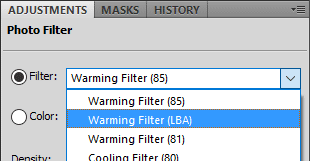
Using a Photo Filter layer to fix casts

There are lots of ways to fix colour casts using Photoshop.  Filters are only one.  If you have another method which works for you (eg Curves, Color Balance, Selective Color), this tutorial doesn't intend to sway your opinion.  Stick with what you know.

But this works for me, so it's time I shared it.

At the outset, I must remind you NOT to attempt to fix casts by adjusting white balance.  Raw edits such as white balance are for the whole photo ... the "greater good", if you like.  Try to turn a blind eye to areas of cast while you're choosing the correct white balance for the overall photo.  (I know, I know, it can be hard.)  The truth is, sometimes choosing the correct white balance will make casts look even worse, and this will scare you.  Stay strong, friend.  Photoshop is the place to worry about casts, not your raw program.

This tutorial is demonstrated in Photoshop CS2, but the method works just the same in all recent versions of Photoshop and Elements.  It assumes a basic knowledge of adjustment layers and masks, which are the beating heart of Photoshop - if you can not easily follow these instructions, I urge you to consider my little Layers and Masks Class.

The other thing you need is familiarity with "colour pairs".  Every colour has its opposite colour on the colour wheel:


Sunday, February 3, 2013

Resizing photos in templates (PS & PSE)

If you've ever had trouble resizing a photo in a template without stretching it out of shape and making it look all wonky; don't worry, you're not alone. It's easy to get confused, because for some reason Photoshop and Elements have opposite default settings. So if you have Elements and have been trying to follow Photoshop instructions, or vice versa, it might have gone badly for you.

So I've created two videos - one for Elements, and one for Photoshop.  I hope they help clarify things.

These videos specifically discuss the resizing step of the template workflow. They don't explain setting up the clipping masks, or placing the images, or anything like that. If you need assistance with those broader issues, I've written tutorials here and here (plus some more here, here and here).

Here's the Elements video:

video


Here's the Photoshop video:

video

Tuesday, October 30, 2012

Using Photoshop's Gradient layer

This one is for Julie, from my Facebook group.  Julie wanted to remove the distracting bright orange toy from this photo, and was having trouble cloning it out.


Now, let's be clear - cloning definitely is the "correct" way to do this.  It could be done with some patience, using this method.  But when I asked Julie if she'd be happy with the "lazy solution" (my area of expertise!!!) she said yes.

So, here we go, Julie.  I did this in Photoshop CS2, but it'll work in all versions of Photoshop and Elements as far back as I can remember.  This method uses the Gradient layer, which I've discussed a little in other tutes, particularly regarding skies.

First, I used the Lasso Tool to roughly select the background:


Saturday, September 29, 2012

Resetting tools

Sometimes, just occasionally, one of your tools will start misbehaving in Photoshop.  It might be the Text Tool which is putting enormous spacing between letters and you don't know why; or it might be the Crop Tool which keeps cropping to a fixed shape even though you've got no values in the Options Bar; or it might be the Clone Stamp Tool which won't sample the right colours ... or whatever.  You know, any one of those annoying little glitches that can happen with any software, any time.

If you're lucky, the problem can be fixed by simply resetting the tool.  You do this via the little "Tool Preset Picker" at the left end of the Options Bar, then going to the submenu, and choosing "Reset Tool":


This won't solve every Photoshop problem you ever have, but it's an important little troubleshooting device to have up your sleeve.

Tuesday, September 4, 2012

What is "clean processing"?

"Clean processing" is a term you'll see frequently on photographic forums, and especially in my Facebook group.  To a degree, everyone has their own interpretation of the concept, but maybe it's new to you.

In a nutshell, a clean-processed image is one to which it's not obvious that any editing has been performed (even if it has).  The kind of image that makes somebody say "Wow, you're a good photographer!", rather than "Gee, you're good at Photoshop!".

A clean-processed photo has no particular effect or style applied, and as such, it should sit as comfortably in your portfolio in five or ten years' time as it does today.  However, it does provide the basis of all other editing styles.  Consistent clean processing means consistent and predictable results from your artistic editing, especially if you use actions or presets.

Of course, even within the narrow description of "clean", there is room for personal interpretation.  You may prefer your images warmer or cooler, or brighter or darker, or richer or paler, than the next person.  But in general terms, a "clean" image is one where the whites are white, the blacks are black, and the grays are gray.

Is it quick?

Maybe, maybe not.  It depends on how good the original photo was.  Clean processing might take a few seconds, or a whole hour.  The point is, nobody can tell.

Friday, August 24, 2012

ColorMunki Create - thumbs down

A recent addition to the monitor calibration market is the Pantone ColorMunki Create.

In reality it's an X-Rite device, like all the other ColorMunkis, but it's badged by Pantone and sold as part of a "professional colour creation solution" package, which apparently enables you to choose sets of colours, build colour palettes ... blah, blah, blah, I don't know.  I didn't look into that stuff.

I bought it because I wanted to see if it's a viable option for people seeking a low-cost monitor calibrator.  And I'm sorry to say it isn't.  It gives even fewer calibration controls than the Spyder Express, and that's really saying something, because the Express gives you very little control.

So, my advice remains the same as it has for a while now.  The bare minimum device for anyone serious about their monitor calibration is the X-Rite ColorMunki Display; and anyone who is more than average serious about it should go for the X-Rite i1Display Pro.

However, having said all that, I will (when I get a chance) be writing a tutorial for the use of the ColorMunki Create, for anyone who has one.  It'll be included with the other calibration instructions on my website.

As always, if you have any questions about monitor calibration, or anything else, please visit me at Ask Damien.

Note: This device is also marketed as the ColorMunki Smile.  Again, it'll give you no reason to smile at all.

Monday, June 11, 2012

Case study: Bright red clothing

Thanks to Chasity from Ohio for allowing me to use this gorgeous photo in this post.

This article relates to my previous Strategies for managing out-of-gamut clothing post, which I suggest you read first if you haven't done so already.

Red clothing is a hassle, isn't it.  Well, any vivid-coloured clothing can be, but red seems to plague us most often.  Check out this photo.  That red outfit is as cute as all get-out, and so wonderfully bright!  It makes you swoon (although it also burns a cyan imprint on your retina if you look at it for too long!!!).


But there are two problems.  Inter-related problems, but different.

Saturday, May 19, 2012

Free texture files - old leather

When you keep your pommel horse in your back yard ...


... its leather inevitably starts to deteriorate.  I was looking at it today (thinking about re-covering with all-weather canvas) and I realised that the old leather is as charismatic as anything!

Well, I couldn't pass up such a great opportunity to add to my texture library, so I borrowed my wife's camera, with the macro lens, and grabbed a bunch of photos.  Needless to say, my complete lack of photographic skill resulted in fewer than one in five of the photos being usable, but still, I ended up with eight keepers.

Monday, May 7, 2012

Create your own wall guides

Thanks to Crystal for asking this great question.

Recently I wrote a tutorial about preparing an image for canvas printing.  But before you prepare it, you've got to choose it, and its size.  The latter is really important - it's easy to think that a print size (eg 20x30") is really big, but in fact it's very small once it's on your wall.

So, the best way to choose a photo and an appropriate size is to see it on your wall first.  And it's very easy to do.  First, take a photo of the wall on which you'd like to hang the print.  Here's an example wall:


To make it simple for yourself, don't photograph the wall at an angle.  Stand perpendicular to it to take the shot.  This tutorial can be adapted (sort of) for an angled photo, but it won't be as easy, or as accurate.

Saturday, April 14, 2012

Cloning in the workflow

All editing can loosely be divided into two categories.  In one category are colour and tonal adjustments, using Curves or Levels or Hue/Saturation or Photo Filters or whatever.  These edits change the appearance of the pixels in the image, and are done with adjustment layers and masks.

In the other category are pixel edits.  These edits actually change the pixels themselves (by moving or copying or blurring or hiding them), and can't be done using adjustment layers - they must be performed directly to the pixels.

In this "pixel editing" category, we find:
  • Noise reduction
  • Liquifying
  • Skin smoothing
  • Cloning
  • Healing

Comments or Questions?

If you have anything to add or ask about this article, please visit me at my Ask Damien page.